

How to Apply Effects to an Image
Apply an effect, such as Vignette, to a photo in Photo Editor.
Steps
Step 1: Download and Install Photo Editor
Download the Photo Editor installer, then run it to install Photo Editor.
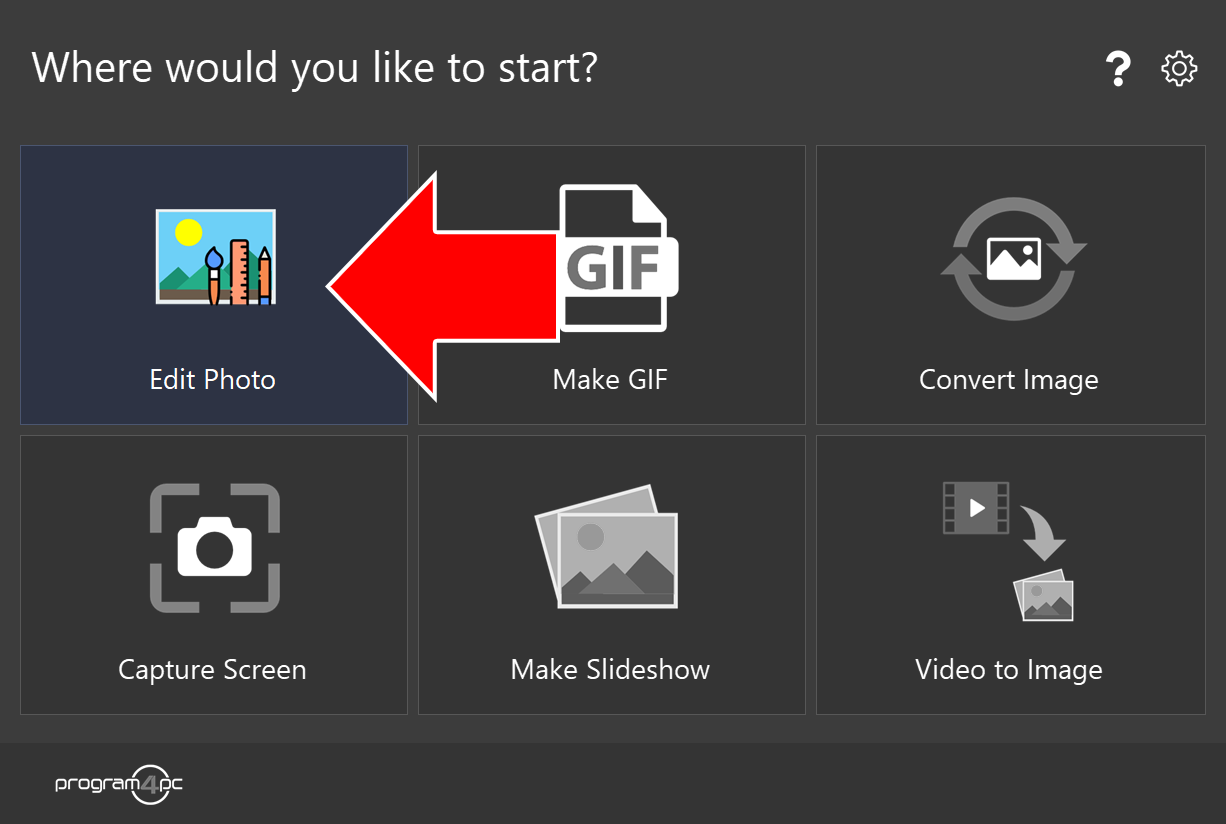
Step 2: Run Photo Editor and Click Edit Photo
On the start screen, click Edit Photo to open the photo editor.
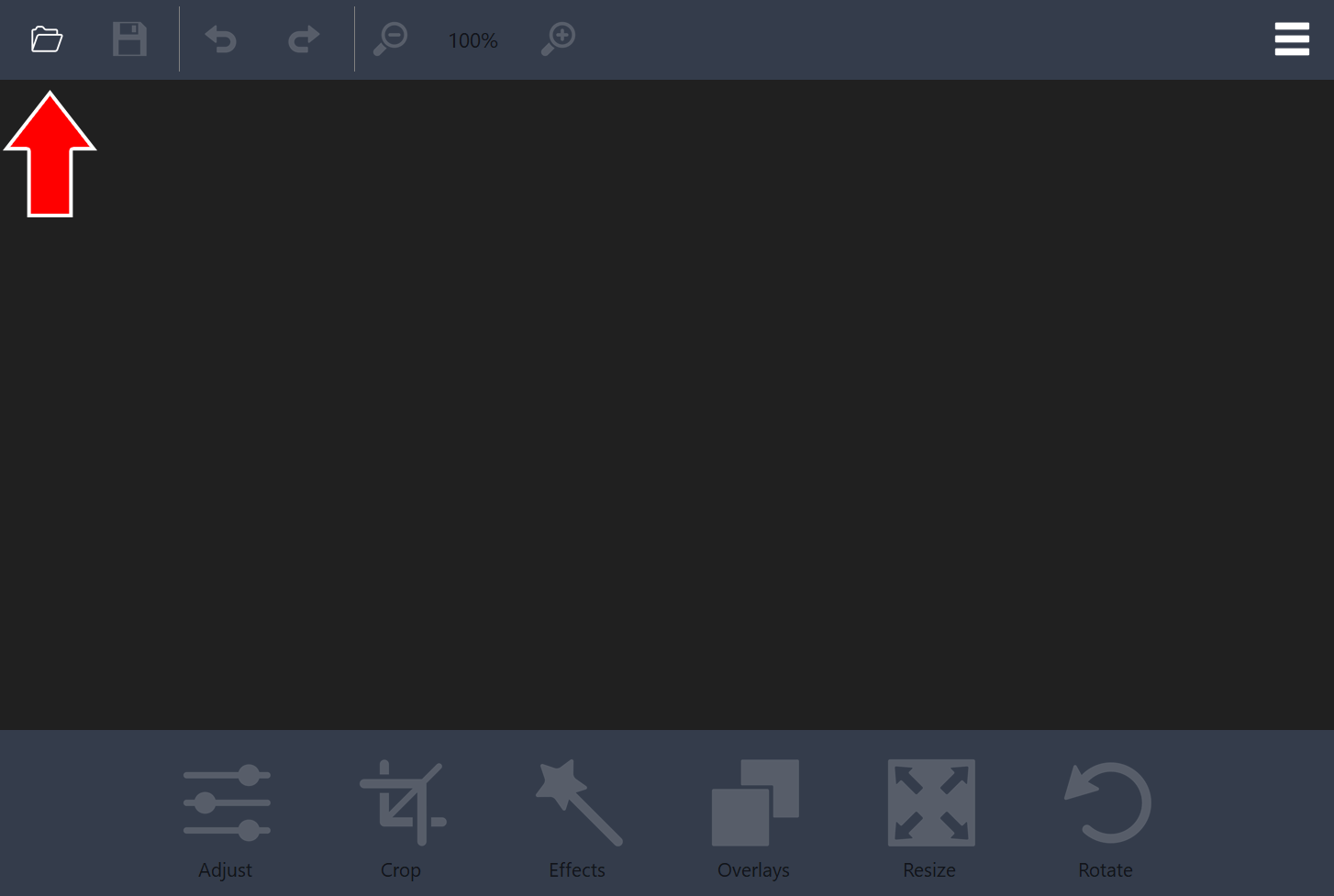
Step 3: Open an Image File
Click the folder icon in the top-left corner of the toolbar and select the image you want to edit.
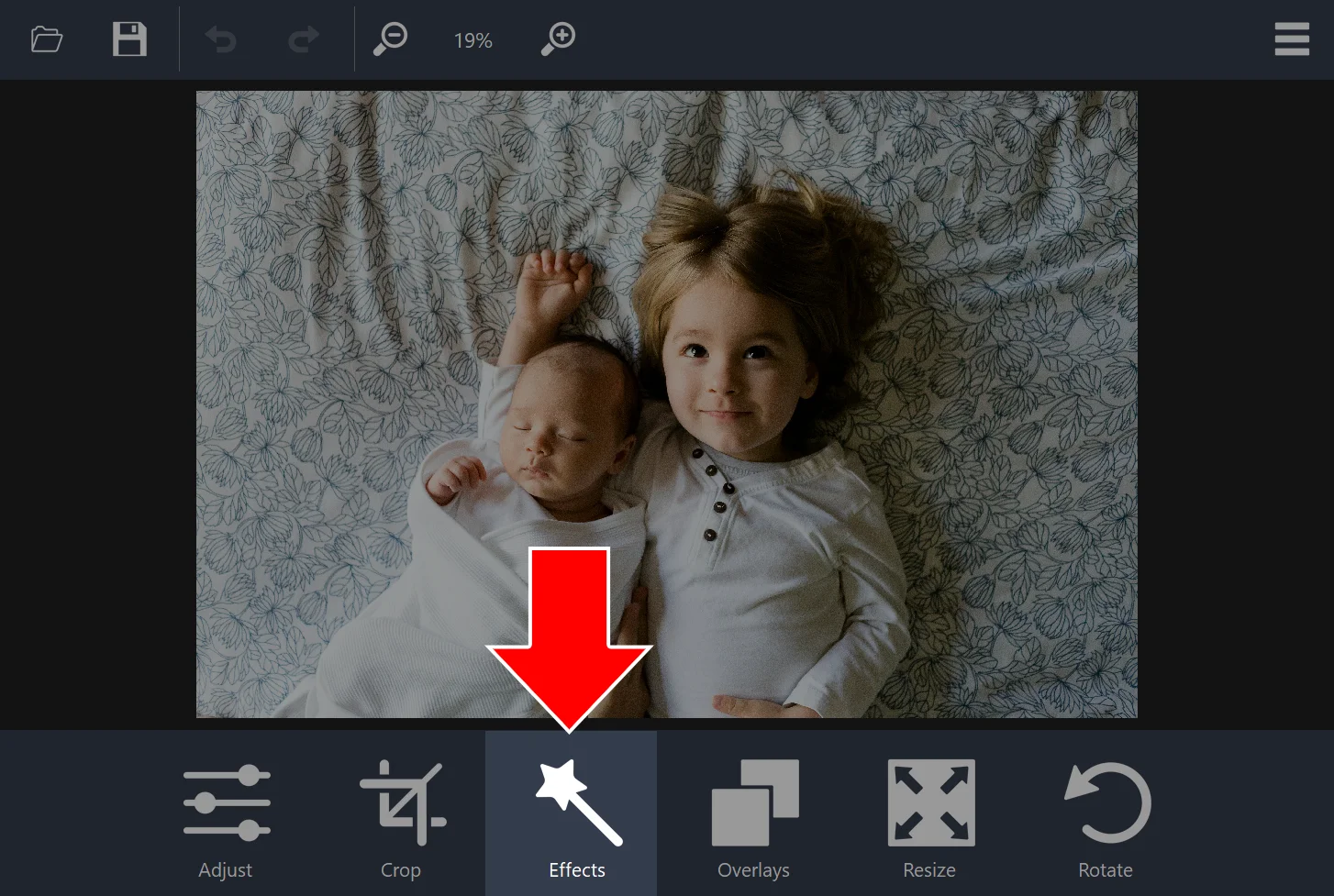
Step 4: Click Effects
Click Effects in the toolbar at the bottom of the window.
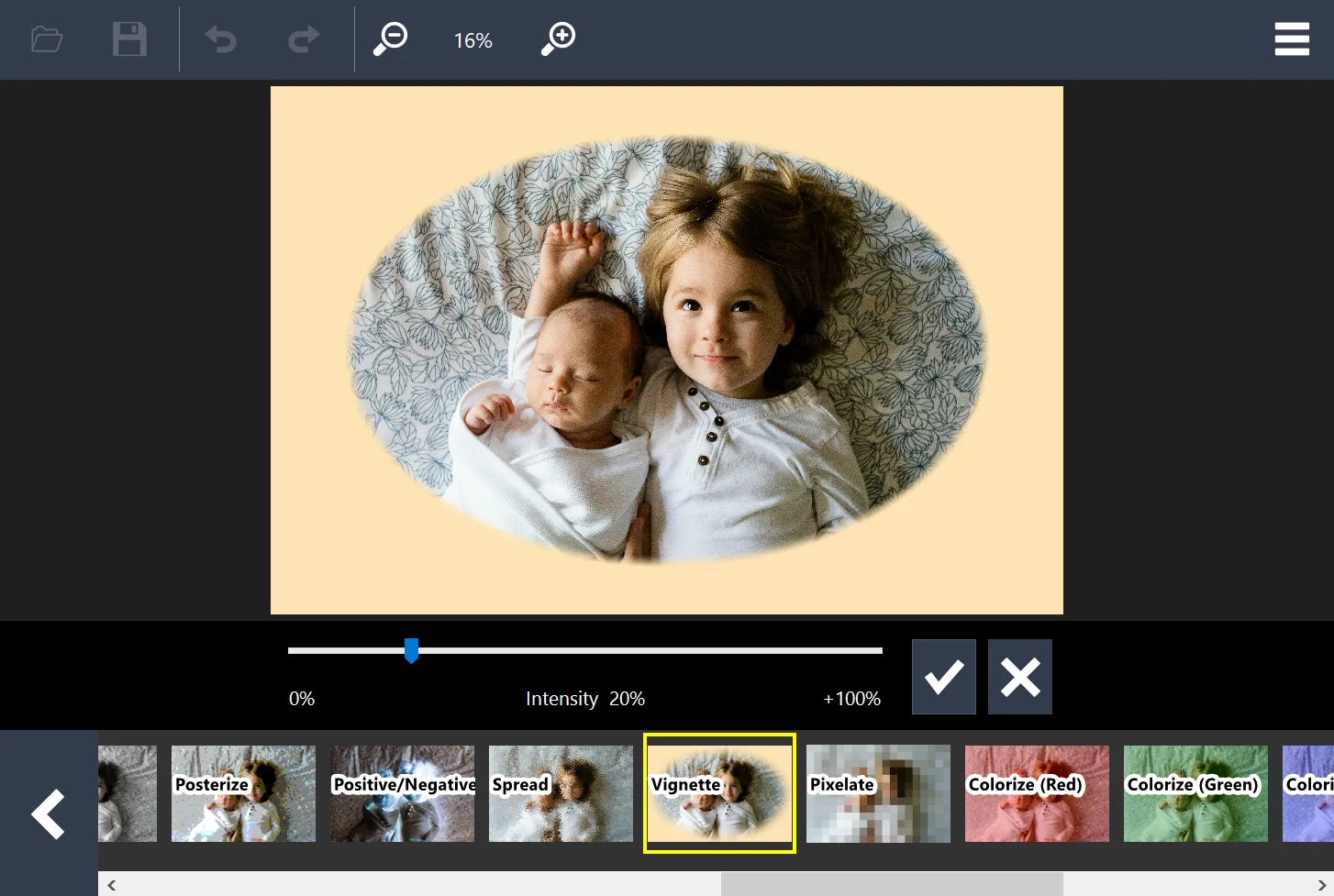
Step 5: Choose an Effect and Apply It
Pick an effect from the list at the bottom, such as Vignette, and adjust the Intensity slider if needed. Then click the check mark button to apply it.
That’s it!
Need more help?
Browse more guides, or contact our Support Team if you can’t find what you need.