
How to Activate Photo Editor
Activating Photo Editor removes all of the trial restrictions. You’ll need the Activation Code from your order confirmation email.
Activation steps
Step 1: Download and install Photo Editor
Step 2: Load the Activation Form
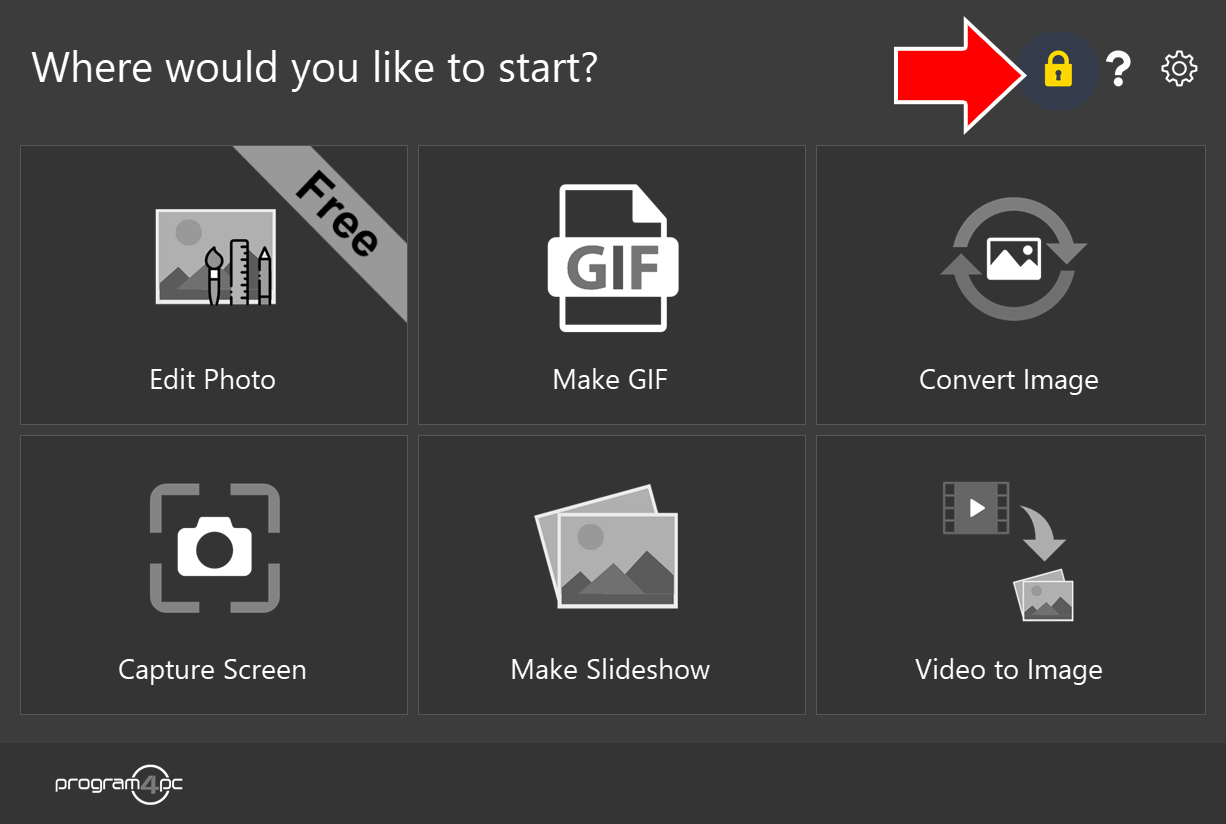
To open the Activation Form and activate your license of Photo Editor, click the yellow lock icon.
Step 3: Enter your Activation Code
Find your Activation Code in the order confirmation email sent to you just after your purchase was confirmed.
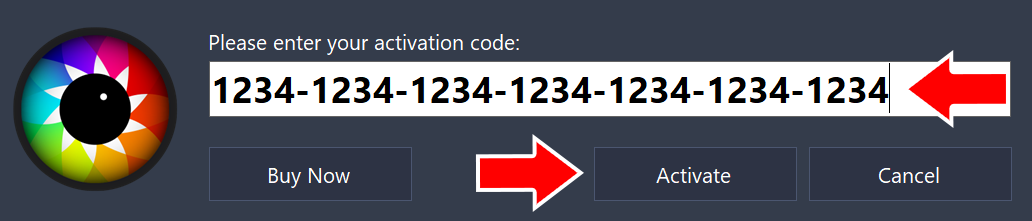
Select the entire code, then copy and paste it into the Activation Form. Then click Activate.
That’s it!
Your license of Photo Editor is now activated.
Can’t find your Activation Code?
Check your spam or junk folder first. If you still need help, contact our support team.
Don’t have a license yet?
Buy Photo Editor to get your Activation Code, or learn more about its features.